Skip to content
LGM-OS
version 2.1.2

Your NAS, on Debian 12

Turns a PC with disks into a complete NAS, administered 100 % from the browser. It installs from our own ISO and depends on no cloud to work: the data, the panel and the backups are yours and live on your machine. A lifetime licence, one single payment, updates included.

One payment, forever

A lifetime licence with updates included: you pay once and it is yours. No subscription and no fees. And once activated it works offline: the licence is checked on the machine itself.

Everything from the browser

Disks, folders, users, apps, virtual machines, cameras and backups. A windowed desktop in light and dark, and it installs as an app.

It updates itself

No need to run the ISO again. The update builds and checks before promoting, and if the panel does not answer afterwards, it rolls itself back.

This is how it looks

Screenshots of the panel apps, in whichever theme you are using right now.

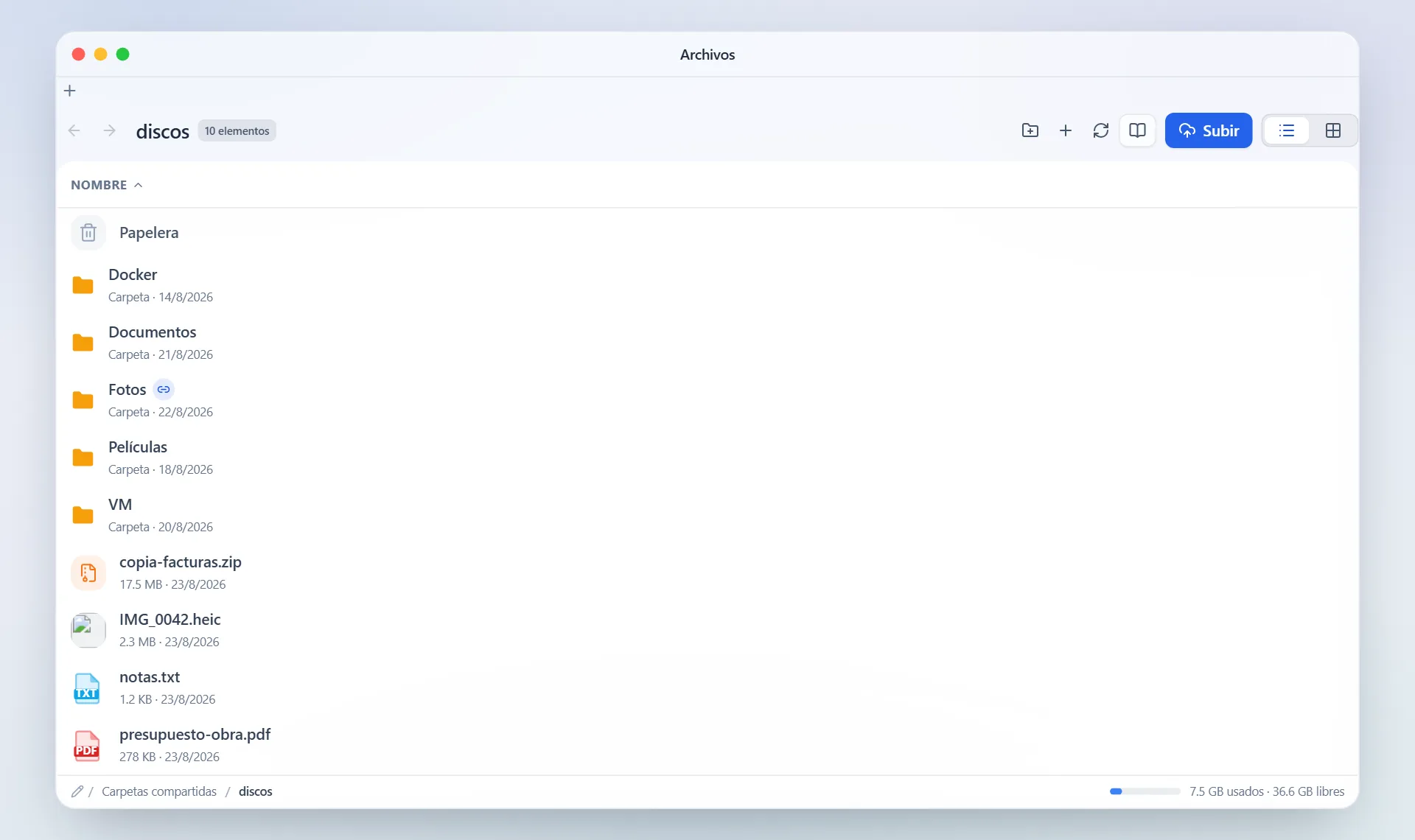
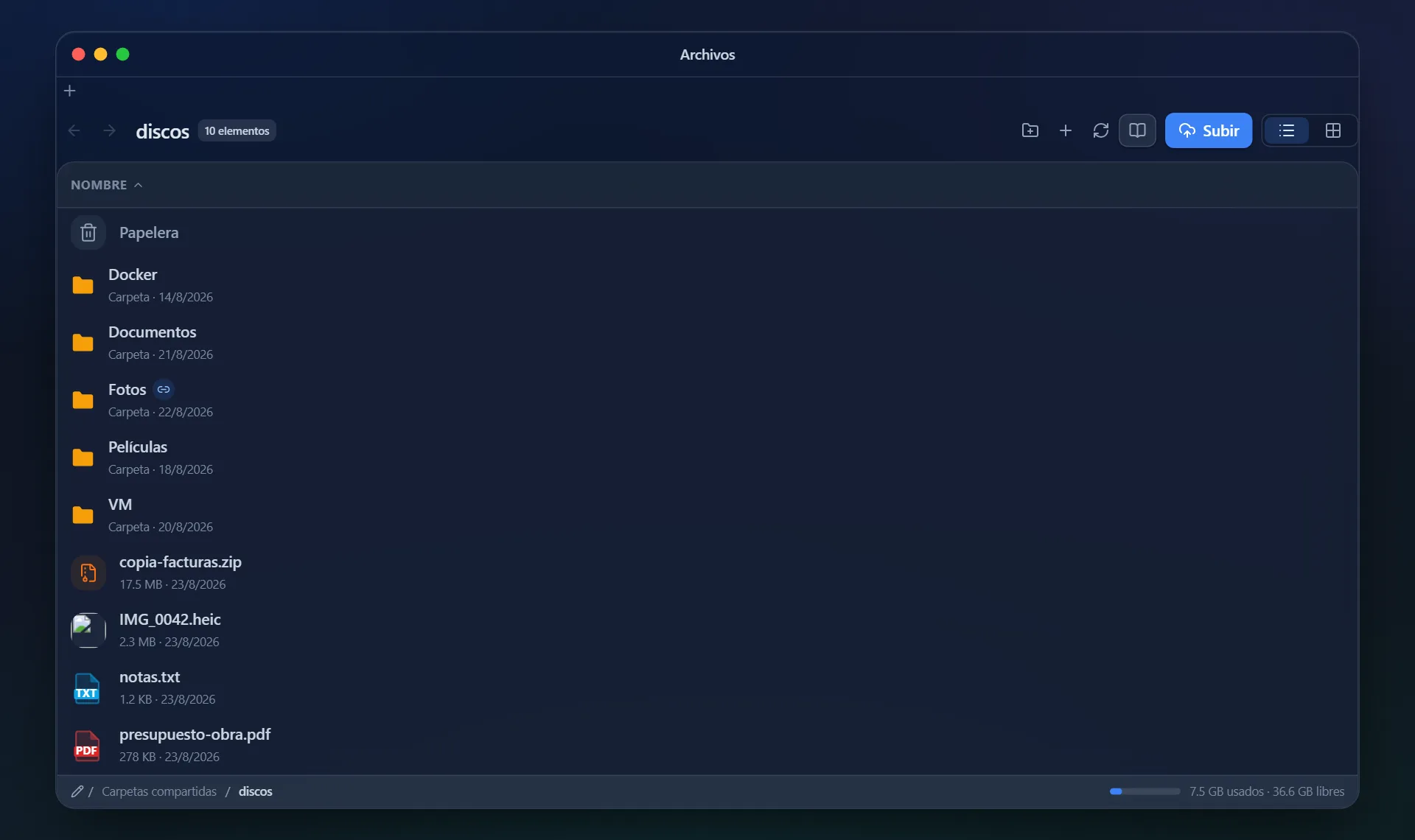
Files · LGM-OS Files · LGM-OS, dark theme
Files The user's shared folders, never the system tree. Drag and drop, a recycle bin, search inside documents and public links with an expiry date.
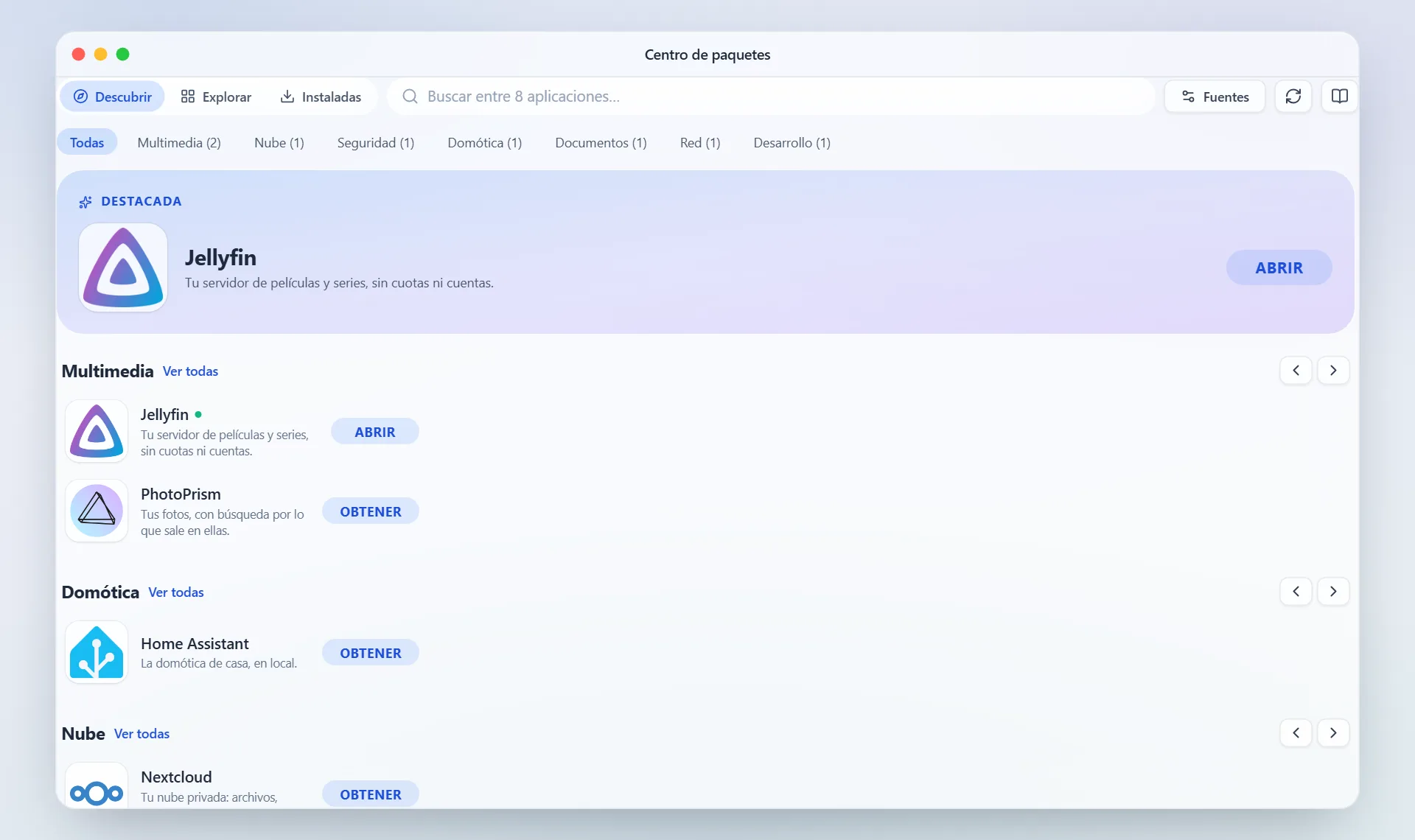
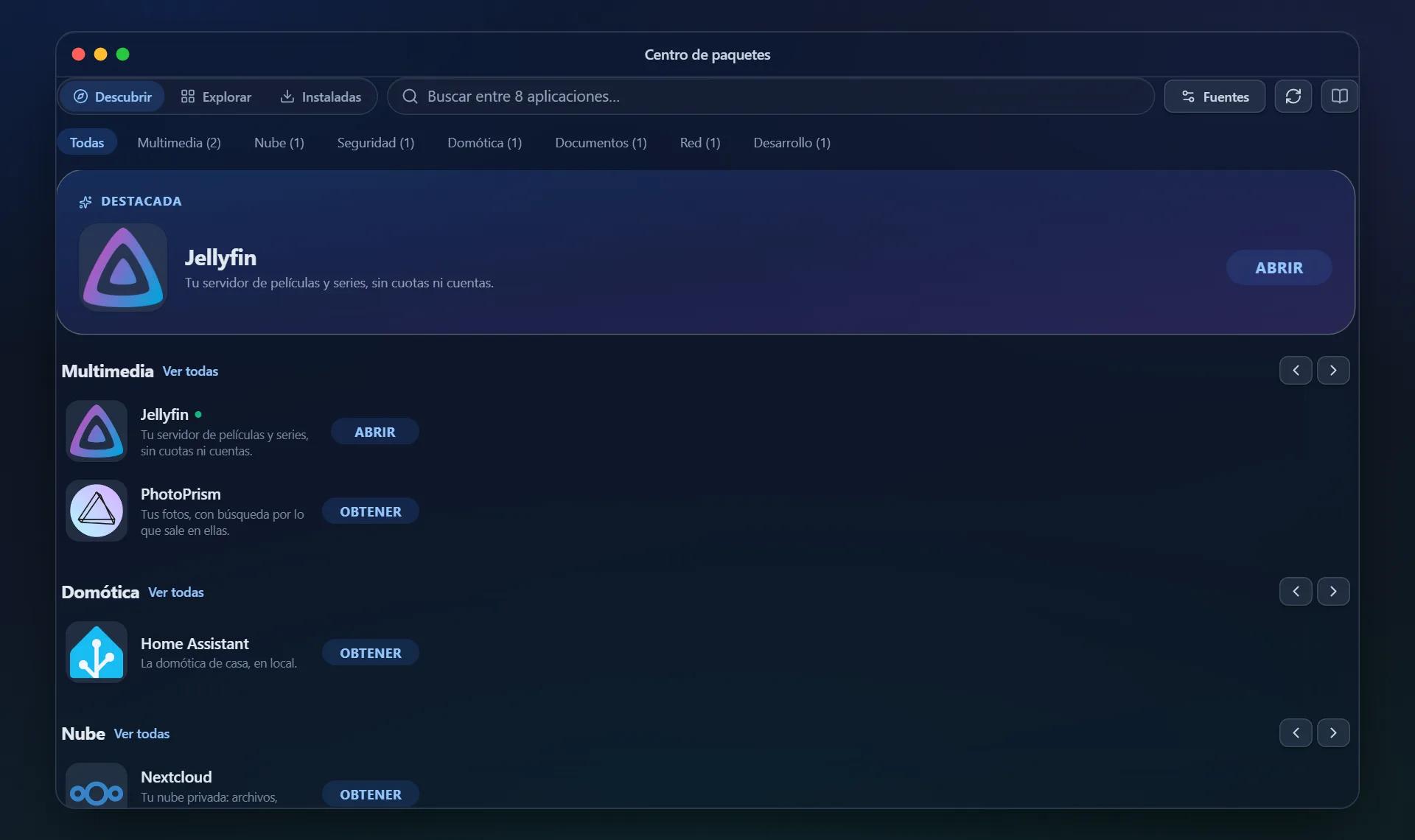
Package centre · LGM-OS Package centre · LGM-OS, dark theme
Package centre 31 in-house recipes with their logos, plus the more than 3,000 apps from the community catalogues (Unraid, CasaOS and Big Bear) that the NAS converts on its own. Each app's data lives inside the volume.
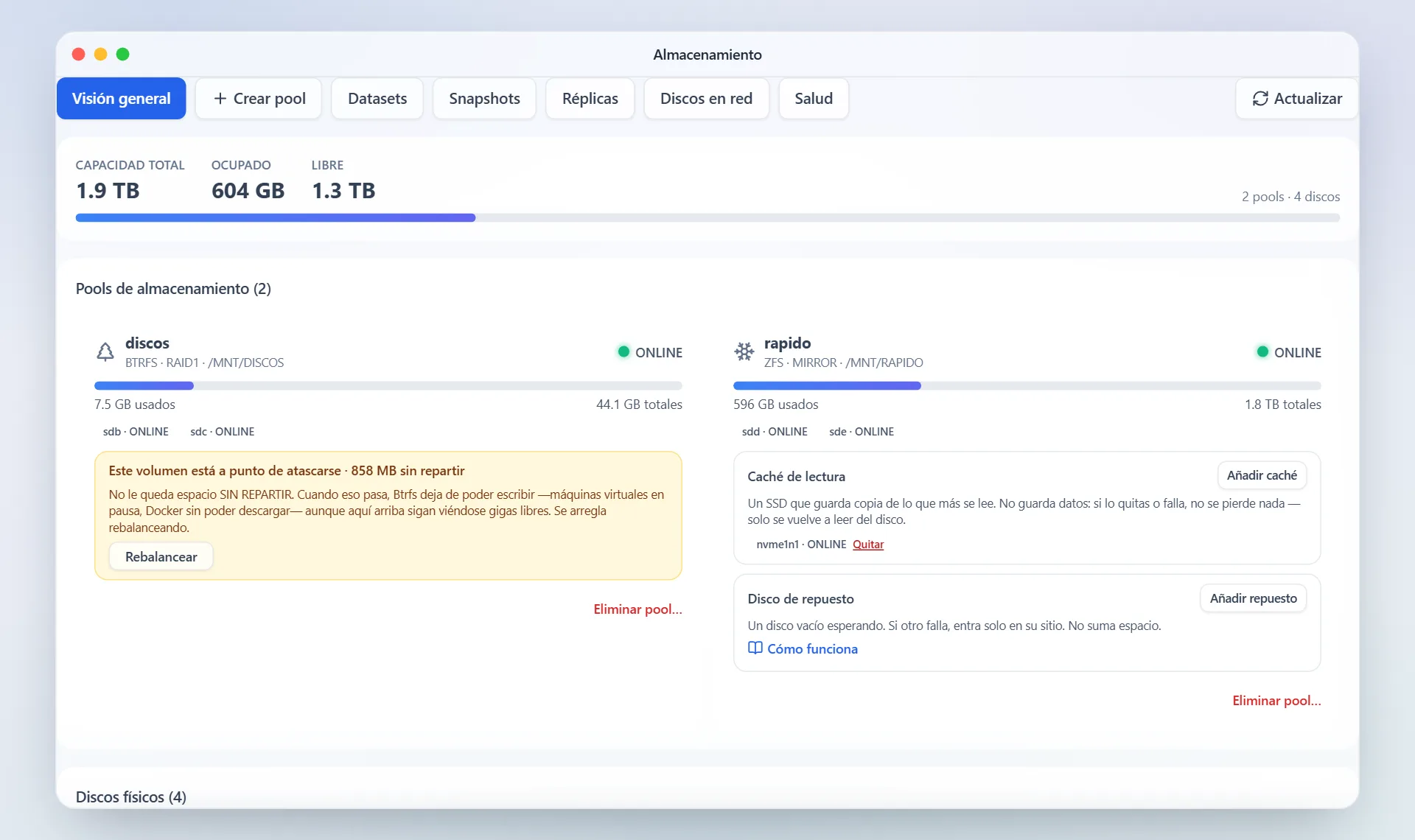
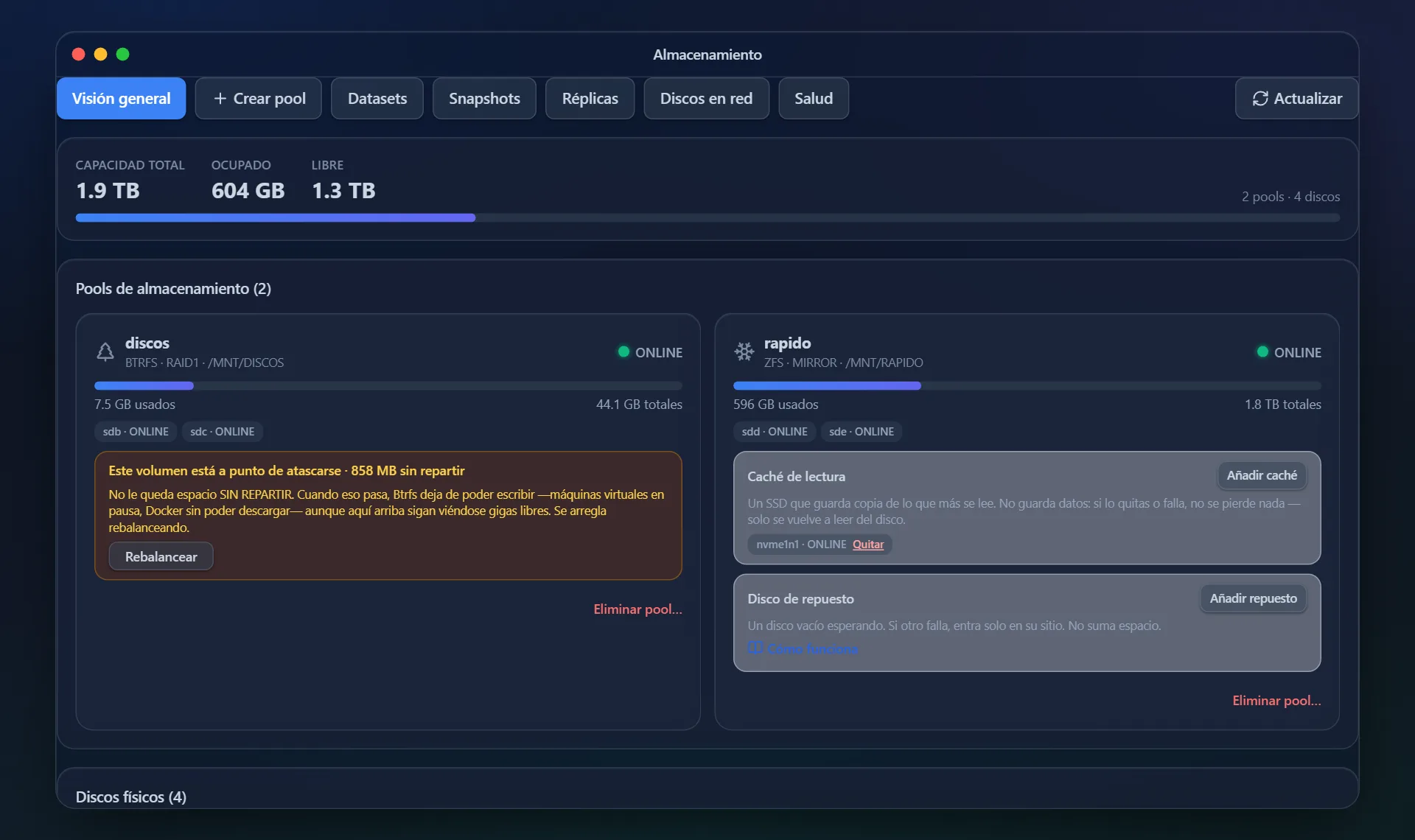
Storage · LGM-OS Storage · LGM-OS, dark theme
Storage Btrfs and ZFS pools with a RAID wizard, datasets, locked snapshots, SMART and scrubs. Disks that cannot be touched are explained, not hidden.
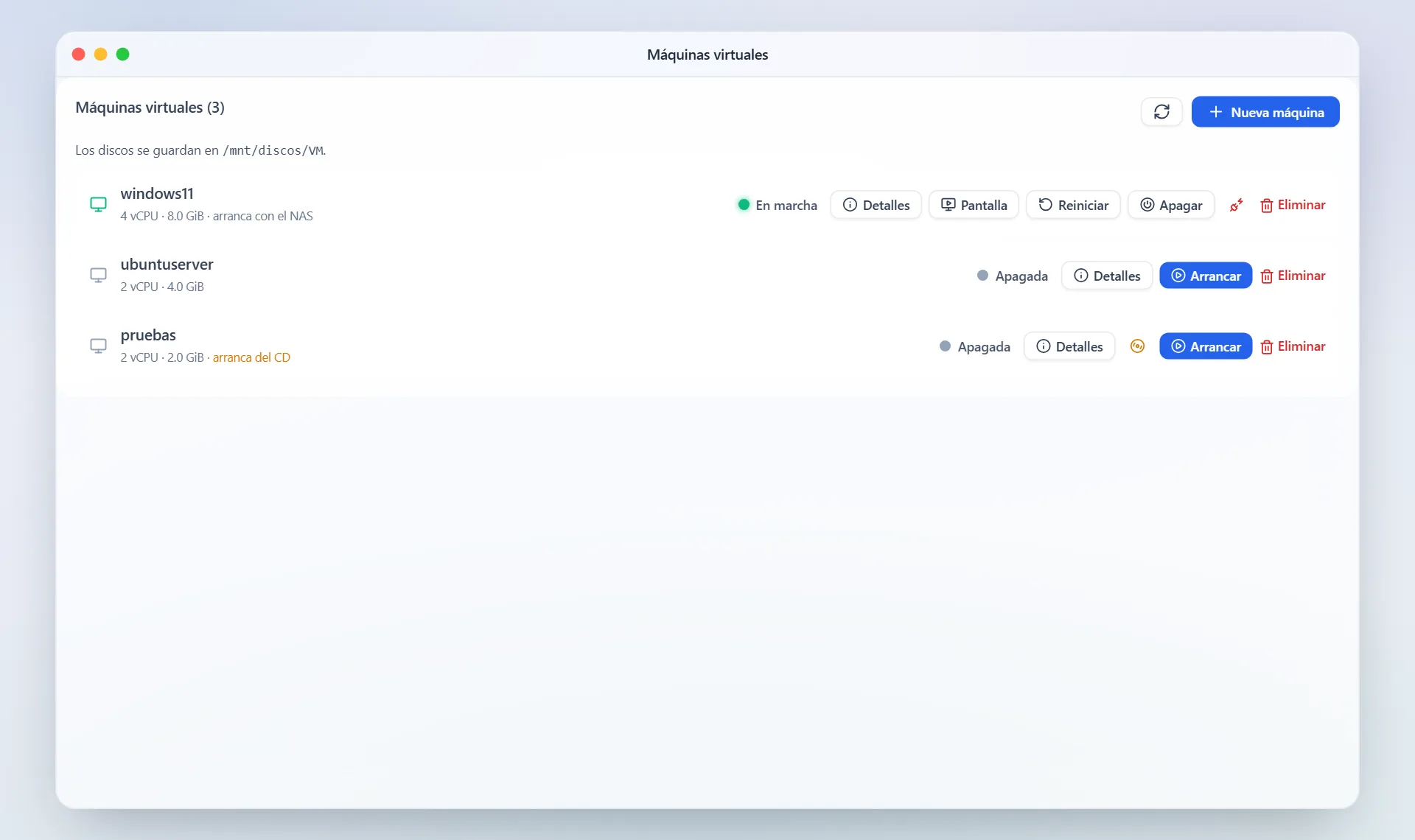
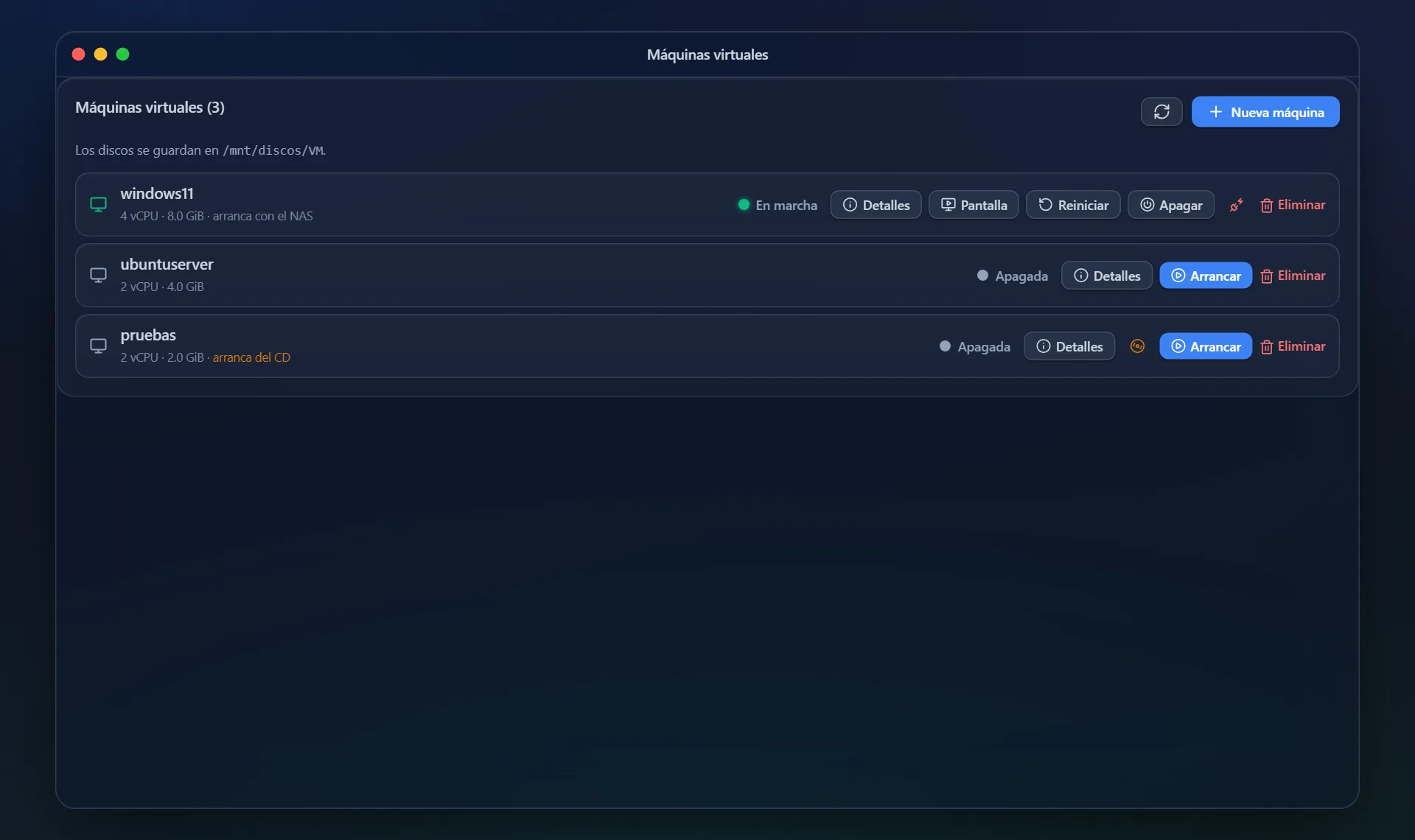
Virtual machines · LGM-OS Virtual machines · LGM-OS, dark theme
Virtual machines Windows or Linux on KVM, with the screen inside the panel. UEFI, secure boot and TPM for whatever needs them.

And on your phone, an app

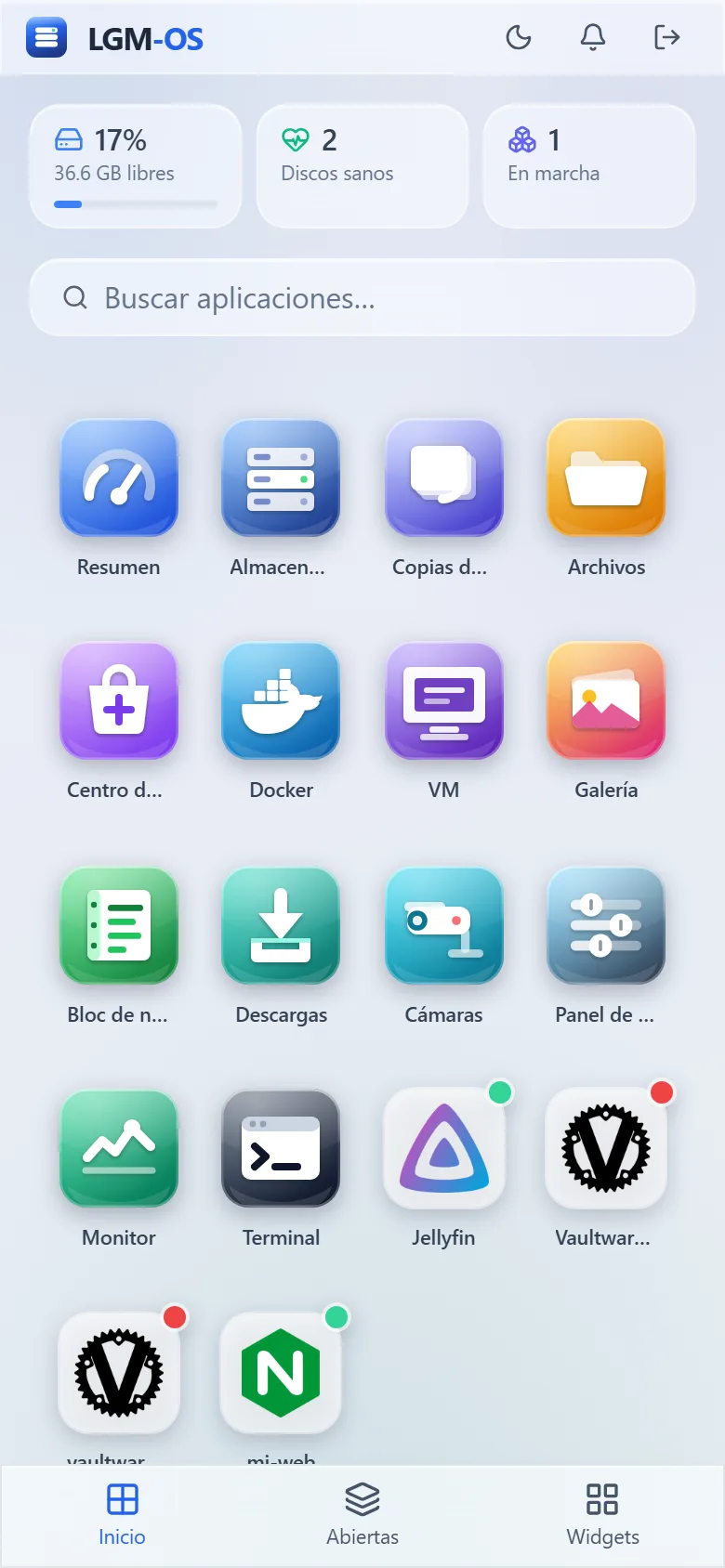
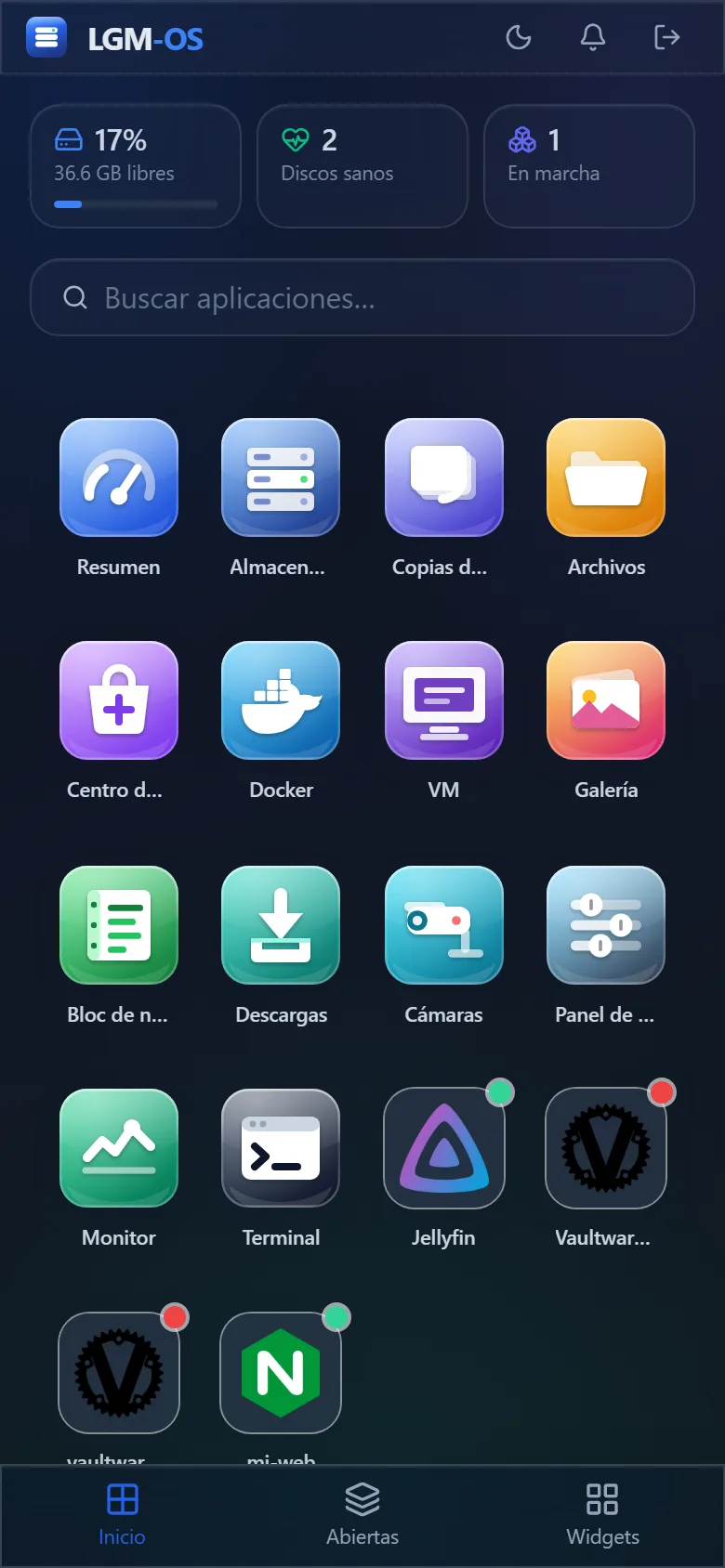
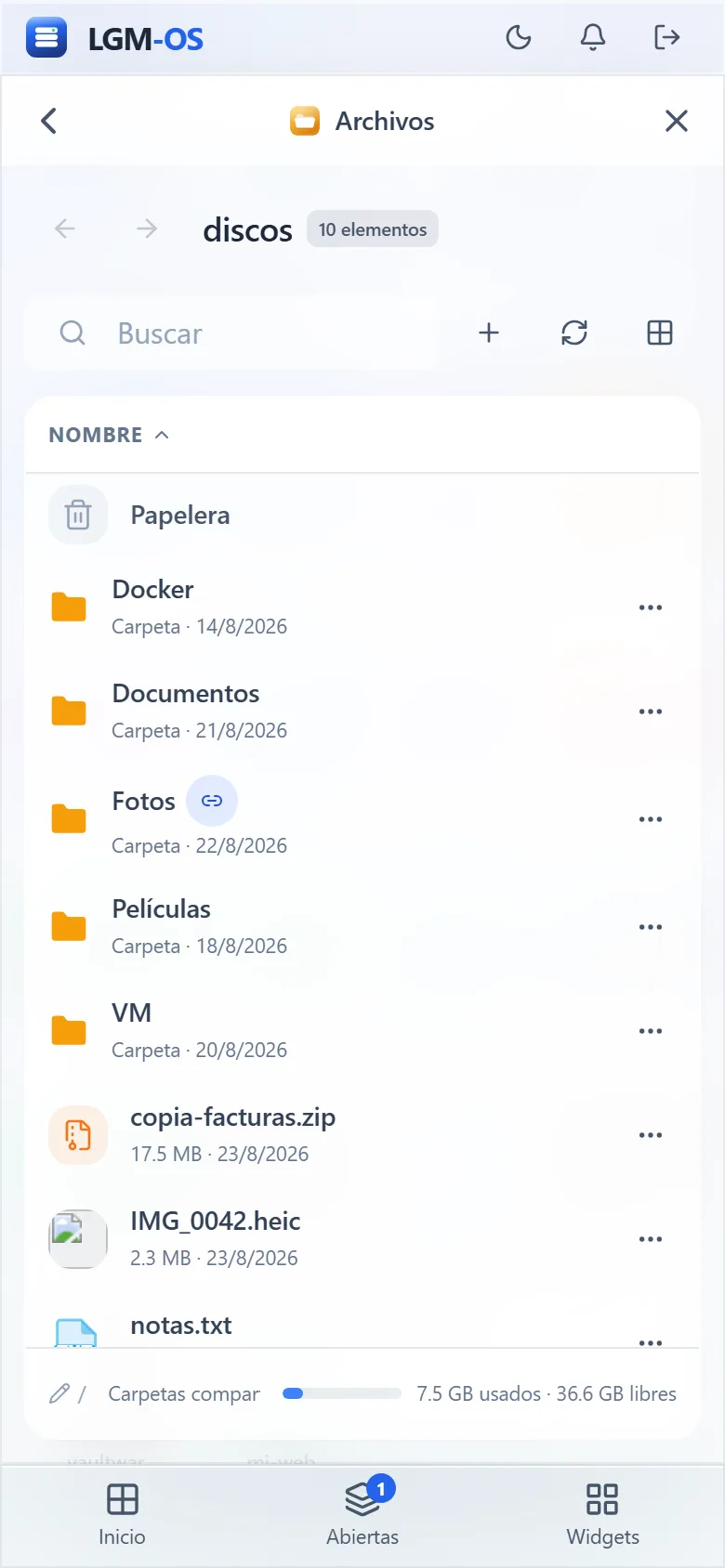
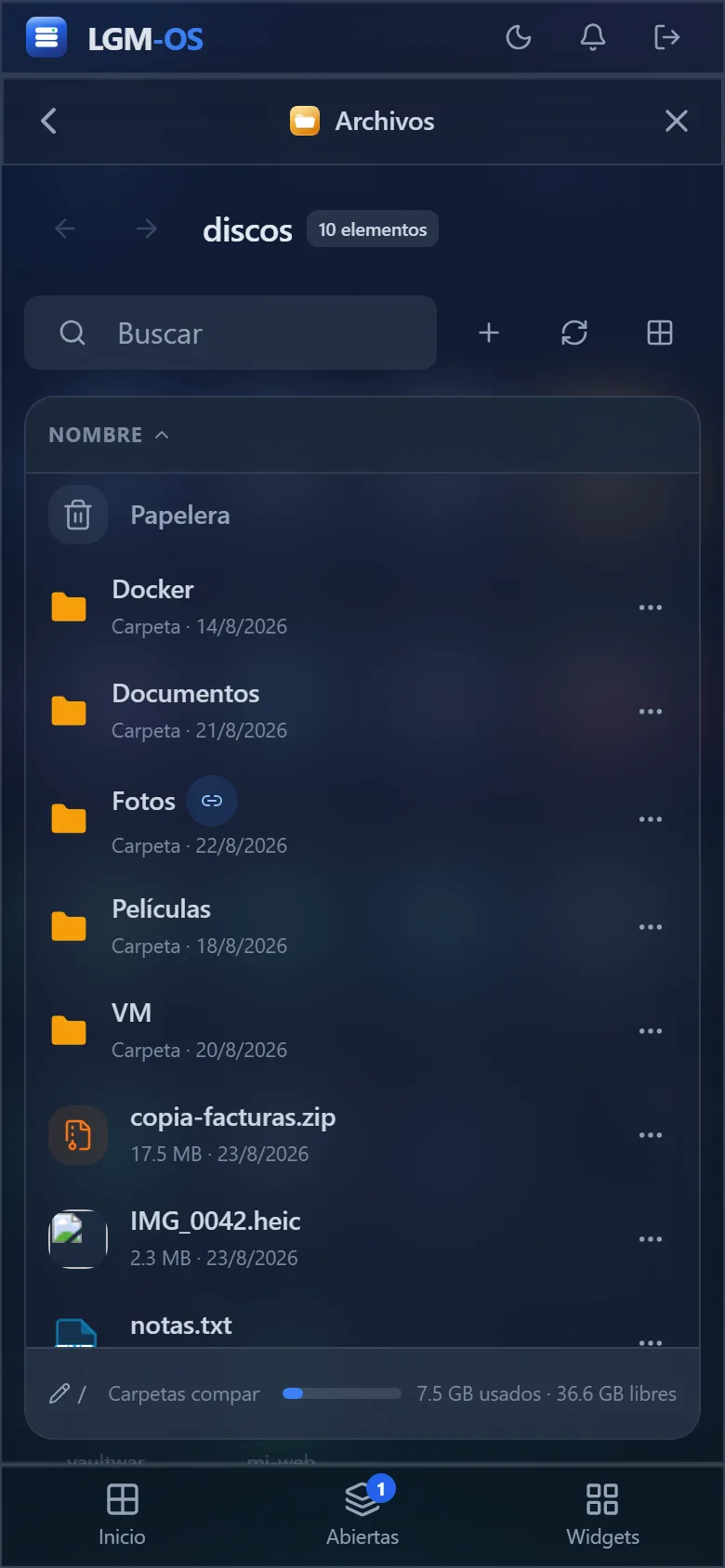
It is not the desktop squeezed down: on narrow screens the panel changes shape.

The home screen The home screen, dark theme
The home screen
An app open An app open, dark theme
An app open

A home screen with the icons, the app taking the whole screen and a bar at the bottom to go back, switch apps or see the widgets. Going home closes nothing. You add it to your phone's home screen and it opens without the browser bar, like any other app.

What it can do

21 areas, and what is inside each one.

Storage

  • Everything that grows lives in the pool: app data, Docker images and virtual machine disks move there on their own when you create it
  • Btrfs (the default) and ZFS pools with a RAID wizard
  • datasets with quota and compression
  • manual and scheduled snapshots with retention
  • SMART, self-tests and scrubs
  • replacing a failed disk or enlarging the pool from the interface
  • replication to another NAS: whole snapshots travel over SSH (zfs send/btrfs send), incrementally, on a schedule and testing the destination before saving — the other machine ends up with a copy of the volume ready to mount
  • network disks (iSCSI): publish a disk from the volume for Windows, Proxmox or VMware, with optional CHAP password, and it cannot be removed while a machine has it mounted
  • spare disk (hot spare): an empty disk on standby that steps in BY ITSELF when another fails —with autoreplace on— and tells you when it does

Users

  • One person, one account, one password: the same one works for the panel, the shared folders, SSH/SFTP and WebDAV — changing it in one place changes it everywhere
  • one profile per person with its tabs: Account (password and panel access), Applications, Folders (the permission on each one, including what reaches them through their groups), Access (shared folders, WebDAV, SFTP and SSH), Groups and Limits
  • groups with members
  • a password policy (length, complexity and expiry; complexity ships switched off on purpose)
  • "keep me signed in"

Directory (AD/LDAP)

  • Joining the NAS to an existing Active Directory, FreeIPA or LDAP+Kerberos (realmd/sssd): domain users come to exist on the machine and get permissions on the folders
  • optional and off out of the box: letting the shared folders accept domain accounts (winbind with the same uids as sssd) and letting those accounts sign in to the panel with their company password, always as "view only"
  • the domain password is never copied to the NAS and the ticket is checked against the machine key in the keytab, so a fake KDC on the network does not get through

Files

  • Shared folders with per-user and per-group permissions
  • SMB (a #recycle bin per folder and Time Machine), NFS and WebDAV with unified users
  • rsync as a server: another NAS leaves its backups here with its own username and password, only in the folders you mark
  • the NAS shows up on its own in Windows "Network" and in the Finder (WS-Discovery and Bonjour), with a configurable name and workgroup
  • jailed SFTP: remote access to a user's files without giving them a terminal or a way out of the system
  • NFS clients by IP (only the machines you authorise mount the folder)
  • a web file manager that shows the user's shared folders, never the system tree
  • drag and drop, a full context menu, a recycle bin, instant search (a name index maintains itself in the background, so searching neither walks the disk nor returns half the results; without an up-to-date index it walks as it always did) and inside the contents of documents, previews of photos, video, audio, PDF and text, zip/tar compress and extract and public links with expiry and password
  • Notepad: opening and saving a .txt, a .md or a .conf on the NAS from the browser —with line numbers, find and replace and a Markdown view— without downloading it or using the terminal
  • "Previous versions" inside Windows itself (and "Revert to" on the Mac): each shared folder can expose its snapshots, so whoever ruins a file gets it back without calling anyone
  • restore a whole folder from a snapshot, which comes back beside the current one and never on top
  • an audit of who deletes, moves or renames over SMB, with their user and machine, in the Log centre
  • searches inside scanned documents: the text of a PDF that is just a photo of paper is recognised in the background (tesseract) and joins the content search

Photos and videos

  • The Gallery app: the photos and videos in your folders, on a timeline by month
  • they index themselves in the background (its own SQLite) and videos come in like photos, with a frame as their thumbnail
  • whatever comes out of a phone or a good camera, as it is: JPEG, PNG, WebP, AVIF, GIF, TIFF, iPhone HEIC/HEIF and camera RAW (.cr2/.cr3, .nef, .arw, .rw2, .orf, .raf… and ProRAW .dng), showing the preview the camera itself left inside
  • Live Photos: the photo and its three-second video are ONE item, with its motion in the viewer, not two repeated tiles
  • real albums —a photo can be in several— that are created, renamed and downloaded as a zip without moving a file on disk
  • favourites with their own filter
  • a viewer with arrows, rotate, zoom and full screen, and video played in chunks (a 3 GB one neither fills a phone's memory nor stops you jumping to a particular minute)
  • uploading from the app itself
  • a duplicate finder that groups what is repeated and never lets you delete the last copy
  • deleting goes to the NAS recycle bin

Backups

  • A copy of your data off the machine: incremental rsync (--link-dest) to a USB disk, another pool or a remote server over SSH
  • and to the cloud (Google Drive, OneDrive, Dropbox, Box, pCloud, MEGA, WebDAV, S3, Wasabi, MinIO and Backblaze B2), connecting the account from the panel itself
  • end-to-end encryption in the cloud: names and contents are encrypted on the NAS before uploading and the provider can read nothing, with a recovery phrase shown once
  • Object Lock on S3: every file uploads locked and not even your own account can delete it before its time
  • smart retention (all of the last 24 h → daily for 7 days → weekly for 4 weeks → monthly for 12 months), or by versions or by days
  • a backup explorer: you go into any version as if it were a folder and restore all of it or a single file
  • an integrity check: it reads the whole copy at the destination and warns if it does not match what was recorded
  • speed and time remaining live during the copy
  • a history of every run
  • a separate copy of the system configuration
  • cloud sync: a NAS folder and a cloud folder kept identical, uploading, downloading or both ways, with the same accounts connected in Files — with a delete handbrake and warnings only when it fails

Surveillance

  • The Cameras app: it finds the cameras on your network over ONVIF and asks them for their own video address
  • adding by brand (Hikvision, Dahua, Reolink, Tapo, Foscam, Axis…) or by pasting the RTSP
  • a live view without re-encoding with under a second of delay, and one single connection per camera even when several people are watching (with MJPEG as a fallback for H.265 cameras)
  • continuous recording in chunks without re-encoding, with retention by days and a size cap
  • one service per camera, so one that fails does not drag the others down

Downloads

  • The Downloads app: paste a link (http/https/ftp) or a magnet, or drop a .torrent, and the NAS fetches it on its own into the shared folder you choose, even if you switch off the machine you asked from
  • it resumes after a power cut
  • download and upload limits, how many at a time, and seeding torrents until they give back what they received
  • it tells you when it finishes through the same channels as every other alert, and what lands keeps the folder's group and permissions, visible from Windows, the Mac or your phone

Media on the TV

  • DLNA server: your TV, console or living-room player finds the NAS on its own and plays whatever is in the folders you pick, with nothing to install on the TV
  • it serves the file as it is (no transcoding), so it works on old televisions and costs no CPU
  • what you copy shows up on its own, and there is a "scan again" button for when something does not

Home office

  • Your own calendar and contacts (CalDAV/CardDAV via Radicale): iPhone, Android, Outlook or Thunderbird sync calendar and address book against the NAS, with the same account as the files and each person seeing only their own
  • network printer: the USB one plugged into the NAS prints from the whole house, AirPrint included, detecting what is plugged in and setting it up from the panel

Against ransomware

  • A lock on snapshots (zfs hold): a protected snapshot is not deleted by the panel, nor by the clean-up by age, nor by zfs destroy as root — which is the first thing anyone hijacking a NAS does. See docs/en/ransomware.md
  • a trap: a bait file in every shared folder, checked every minute; if something encrypts or deletes it, a critical alert and —if you asked for it— the shared folders close immediately to stop the encryption, leaving the panel and the backups running

Diagnostics

  • A check per service: the panel, storage, SMB, NFS, WebDAV, SSH, Docker, backups and cameras are really examined (a live systemd unit, a listening port, the firewall rule, a coherent configuration) and every failure comes with what to do. It does not read the saved intention: it looks at the system
  • network tests that go outside: ping, checking a port on any machine and measuring the real download speed

Space report

  • It analyses a folder and shows where the disk goes: the biggest folders, the biggest files and duplicate files (detected by content, not just by size) with how much you would free up
  • the analysis runs in the background and is bounded so it does not read terabytes

Metrics history

  • CPU, memory, network and disk in a light time series (one sample a minute in its own SQLite), by hour/day/week/month
  • long ranges are aggregated so the graph always weighs the same

Access from the internet

  • DDNS
  • Let's Encrypt certificates with certbot and automatic renewal, over HTTP or over DNS (DNS-01 with Cloudflare: no ports to open and wildcards allowed)
  • an Apache reverse proxy that publishes the panel and the apps by subdomain, leaving 80/443 as the only exposed surface

Network services

  • A WireGuard VPN that "configures itself": it detects the public address, proposes the DNS and warns if a client would not reach the home network
  • profiles per device and a QR code
  • a DNS server with local names and caching
  • a DHCP server with reservations by MAC (both on dnsmasq)

Applications

  • An application shop: a front page with featured apps and shelves by category, a search box ranked by relevance (accent-insensitive and multi-word), infinite scroll and a page per app
  • 31 in-house recipes with their official logos (Jellyfin, Plex, Nextcloud, Vaultwarden, Home Assistant, PhotoPrism, Paperless-ngx, Pi-hole, AdGuard, *arr, Syncthing, Gitea…) and community catalogues the NAS converts on its own: more than 3,000 community apps (Unraid's Community Applications and the CasaOS and Big Bear stores), with where they come from shown under "Catalogue sources"
  • each app's data lives inside the pool
  • every port it publishes gets its own firewall rule, open to the home network, and is closed or opened to everyone from Security → Firewall
  • a visual editor for ports and folders (without touching the compose file) as well as the recipe editor
  • Docker integrated (live logs, CPU/RAM) and containers created by hand also show up as apps

Virtual machines

  • The VM app: creating, starting and deleting machines on KVM/libvirt
  • installing from an .iso in your folders
  • the screen (VNC) inside the panel, published only on the machine itself

System

  • Static/DHCP/VLAN networking
  • network card bonding for redundancy or speed
  • static routes, the NAS's own manual DNS (what joining a domain asks for) and an outbound proxy for the NAS's and Docker's downloads
  • disks appear when you plug them in (udev, no reload)
  • kiosk mode: the server boots showing the panel full screen on its own monitor
  • signed updates (Ed25519) from the LGM-OS release channel, with one button or on their own if you switch that on
  • UPS through NUT with an orderly shutdown (it closes the virtual machines and the containers, flushes to disk and only then powers off)
  • SNMP
  • time zone and NTP
  • USB devices
  • a web terminal with a root session after re-authenticating
  • alerts over email, webhook, Telegram, Discord and ntfy, choosing which level goes where and what waits for the daily digest
  • thresholds for disk, sustained CPU and temperature
  • automatic tasks: cleaning temporary files, tidying downloads and sorting series
  • logs and audit, downloadable already filtered
  • automatic power off and on: the NAS switches off at its time and comes back on its own in the morning (the board's own clock keeps the alarm, not the network), with Wake-on-LAN to switch it on from your phone; if the alarm cannot be set it does NOT switch off, and neither does it with a backup running
  • disks go to sleep after 20 minutes, 30, 1 h or 2 without use (less noise, less power), and they are told again on every boot

Security

  • TOTP 2FA
  • admin/viewer roles
  • a password policy
  • an nftables firewall that opens and closes the ports with each service (SMB, NFS, WebDAV, SSH, SNMP, rsync, VPN, discovery) and brings itself up to date at boot
  • a security advisor
  • automatic IP blocking, over SSH too (applied by the firewall, not only by the panel)
  • revocable connected sessions
  • antivirus (ClamAV): scans the shared folders by hand or weekly, with up-to-date signatures, and reports whatever it finds; out of the box it touches nothing, and you can have it move the file out to a quarantine
  • country blocking: only allow the countries you choose —an allow list, with ranges downloaded and refreshed automatically— while your own network always gets in
  • a weekly report on the state of things (space, disks, backups, antivirus and updates) through the usual alerts, readable before you switch it on

Licence

  • One single payment, for life, with updates included
  • the key is signed (Ed25519) and, once activated —that does need the internet, once—, verified on the machine itself, with no internet; if there is a connection, it checks now and then that it has not been revoked
  • tied to you, not to the machine: if the machine breaks, the same key activates on another, with no activation limit
  • a real 60-day trial when you link your free lgm-os.com account
  • your data is never held hostage: without a licence (once the trial ends, or after 7 days if you neither link your account nor activate one) the NAS goes into "data only" —browse and download all your files, shared folders read-only— and nothing is deleted; with the licence activated, going offline locks nothing

Getting started

An x86-64 machine with 4 GB of memory and a 32 GB system disk.

From our own ISO, which installs Debian 12 and LGM-OS in a single pass:

bash deploy/build-iso.sh

Or on top of a Debian 12 you already have:

sudo bash deploy/install.sh

When it finishes, open https://<ip-del-nas>:5001: the wizard asks you to create your administrator. There is no factory username or password. The full steps, in download and install.

The licence, in plain words

One payment, for life. No fees, no ties to particular hardware and no locks on your data.

You pay once and it is yours

A lifetime licence, with updates included. No subscription, no fees and no expiry date. You buy it, you get your key and you paste it into the panel, under Control panel → System → Licence.

It is checked on your own machine

The key is signed and the NAS verifies it on its own, on your machine. The internet is needed to activate it (once) and for the trial, which comes from linking your account; after that, losing the network switches nothing off and locks nothing. If within 7 days you neither link your account nor activate a licence, the NAS stays usable only to get your files out until you do.

If the machine breaks, it goes with you

The licence is tied to you, not to the machine. If the NAS breaks you build another one, paste the same key and carry on where you left off. Without calling anyone and with no activation limit.

Your data is never held hostage

If the trial ends without a licence, the NAS goes into "data only": you can still browse and download all your files and read your shared folders, and nothing is deleted. The licence unlocks the product; it is never a padlock on what is yours.

Want a look before buying? All the documentation and these pages can be read without signing up or signing in: you do not have to be connected to anything.

Under the bonnet

For anyone who wants a look inside.

Backend
Python 3.11 + FastAPI. Privileged operations go through a separate process with an allowlist of commands: the panel itself runs unprivileged.
Interface
React 18 + TypeScript + Vite + Tailwind. A multi-window desktop, light and dark, installable as an app (PWA).
Foundation
Debian 12 stable. No home-made distribution: the packages are Debian's and the system can also be administered over SSH.
Tested
An automated test suite for the backend, types and a build of the interface on every change, and a real install from the ISO in a virtual machine.